Welcome to Tech Tips!
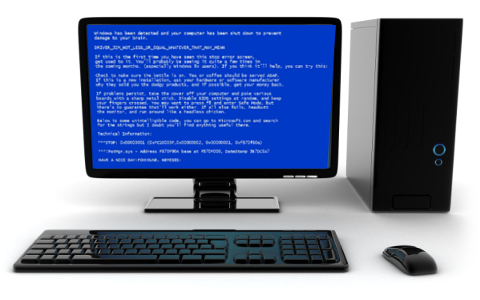
Are you having problems with your computer or using certain applications? Do you get random blue-screens or error messages when you're in the middle of doing something? Well we just might have a fix for you!
Does your computer operate fine but it seems a little slow? Is your games lagging or perhaps looking a little poor in quality? Check out our tips & tweaks to learn how you can maximize your PC's performance.
Have a problem you need help with that isn't listed, or maybe you just want to say hi? Why don't you contact us and tell us all about it.
Speeding up your PC by disabling unused applications
A good way to start optimizing your PC's performance is to disable any unused applications from start up. Infact... even if you "USE" the application, do you really want it to pop up at start up anyway? The more applications that run at startup... the longer it takes for your computer to boot up, and you can always just run the applications you want when you want to use them without having them load up automatically at the start up anyway. So lets disable them! Click start and either click run (if you see it) or type "msconfig" in the search bar (type the same thing into the box if your using run). Once you have msconfig up click on the startup tab and start unchecking. You can also do the same thing for Services as well... but you need to be carefull with them since unlike programs they are sometimes needed by applications or hardware to start or run properly.
Performance Tweaks
One of the biggest impacts to system performance in PC's running Windows Vista and higher is the UAC (User Account Control). In most cases, disabling UAC speeds up common tasks significantly since UAC can dramatically delay programs from accessing information. You can disable UAC in the control panel with just a few clicks and a reboot.
Fixing Blue-Screens
Most blue-screens are caused by recent software or hardware changes. For example, if you just installed more memory and now you encounter what seems to be random crashes, the problem is most likely that the new RAM is flakey or incompatible with your existing memory. Other things to check might be the slot on your motherboard, if the memory is well seated, or if that particular RAM slot is bad. It is important that any time you install new hardware (ie. Graphics Cards, CPUS's, Sound Cards, etc...) that you make sure it is inserted into it's proper slot and seated (connected) well, and that nothing metal or conductive (like the computer case or other exposed components) is making contact with the newly installed hardware in places that it shouldn't.
The primary cause of blue-screens is usually software related and usually occurs after installing updates, new software, or drivers. In order to fix these kinds of problems you must first isolate the root cause. Is it a driver? If it is a driver it will most likely tell you what driver it is at the bottom or top of the screen. Try to boot into safemode by tapping the F8 key as the computer starts. If safemode also fails to start you might be looking at a hardware problem, but that isn't always the case and there are better alternatives like bootable PE's (pre-installed enviroment). After booting into safemode (or a PE) locate the driver specified by the error code on the blue-screen usually in the ROOT\WINDOWS\System32\Drivers\ directory and try renaming the driver to something else (i.e. rename baddriver.sys to baddriver.sys.disabled) and restart the PC to see if the blue-screen shows up again. If the blue-screen persists check to see if the root cause is the same driver or a different one. Sometimes blue-screens are triggered by more than one problem so two or three drivers may be corrupt or incompatible and you might have to repeat the process until the problem is solved. If the bluescreen doesn't specify a file or driver as a root cause you may want to start by testing the hardware. To do this, boot into safemode (or a PE) and run a burn-in test to see if the PC will fail. If the PC fails then you might be looking at anything from a issue with overheating (check to see if the PC is running hot) to a certain hardware components failure (test parts individually like RAM, CPU, Harddrive(s), GPU, ect...).